Viewing and downloading reports
Open, download, print and file your patients' reports.
View a report
- On the Dashboard, find the order, or search for the patient.
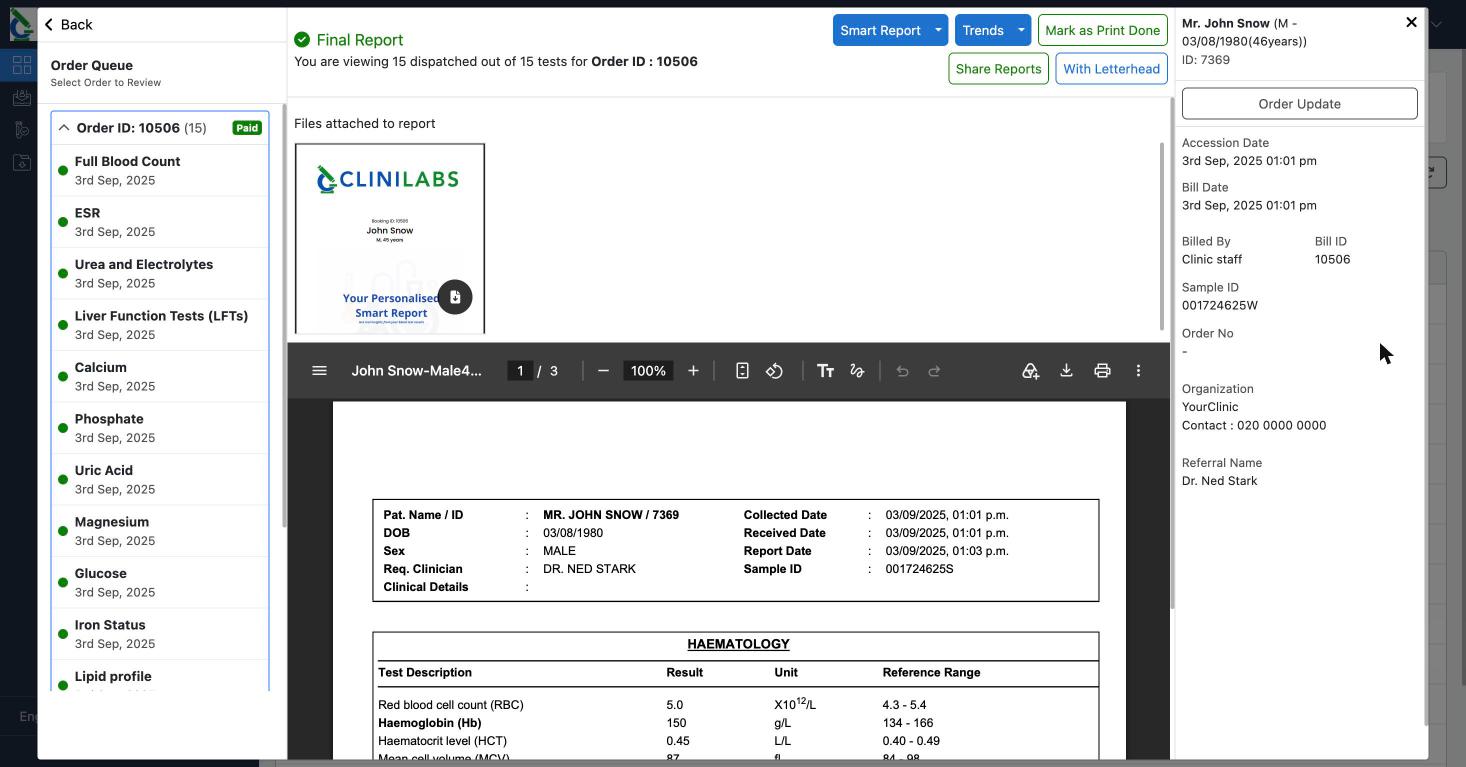
- Select Review on the order's row. Completed orders have the full report; Preliminary orders show the results ready so far.
- The report opens with each test listed on the left and the PDF in the middle. Use the download or print buttons on the PDF's toolbar. Any attachments, such as your patient's personalised Smart Report, are shown above it.
Report options
| Option | What it does |
|---|---|
| The ▾ next to Review | Choose the PDF layout: no page breaks, a new page per test, or a new page per category |
| With Letterhead | Show or hide the letterhead on the PDF |
| Trends | Compare results with this patient's previous results |
| Smart Report | A visual summary of the results for your patient |
| Share Reports | Send the report to the patient or another clinician |
| Mark as Print Done | Tick off reports you've printed, so you can see what's left |
Downloading or printing several reports
On the Dashboard, tick the box at the start of each order you want, then select Download Reports. Report Prints in the menu lets you print or download a day's reports together, by patient; tick Hide Print Done to see only the ones you haven't printed yet.
Notifications
You'll be notified when reports are ready and when a report has critical results: look for the Notifications bell at the top of the portal. We also email these notifications to your clinic's email address on file with us.
Reading the report
Each result is shown with the reference range for that test. Results outside the range are flagged so they stand out. The report also shows when the sample was collected, received and reported, and who authorised it.
Emailed reports
Your clinic can also receive reports by email as soon as they're ready, either one by one or all together when the whole order is complete. To change how you receive reports, contact us.
Older reports
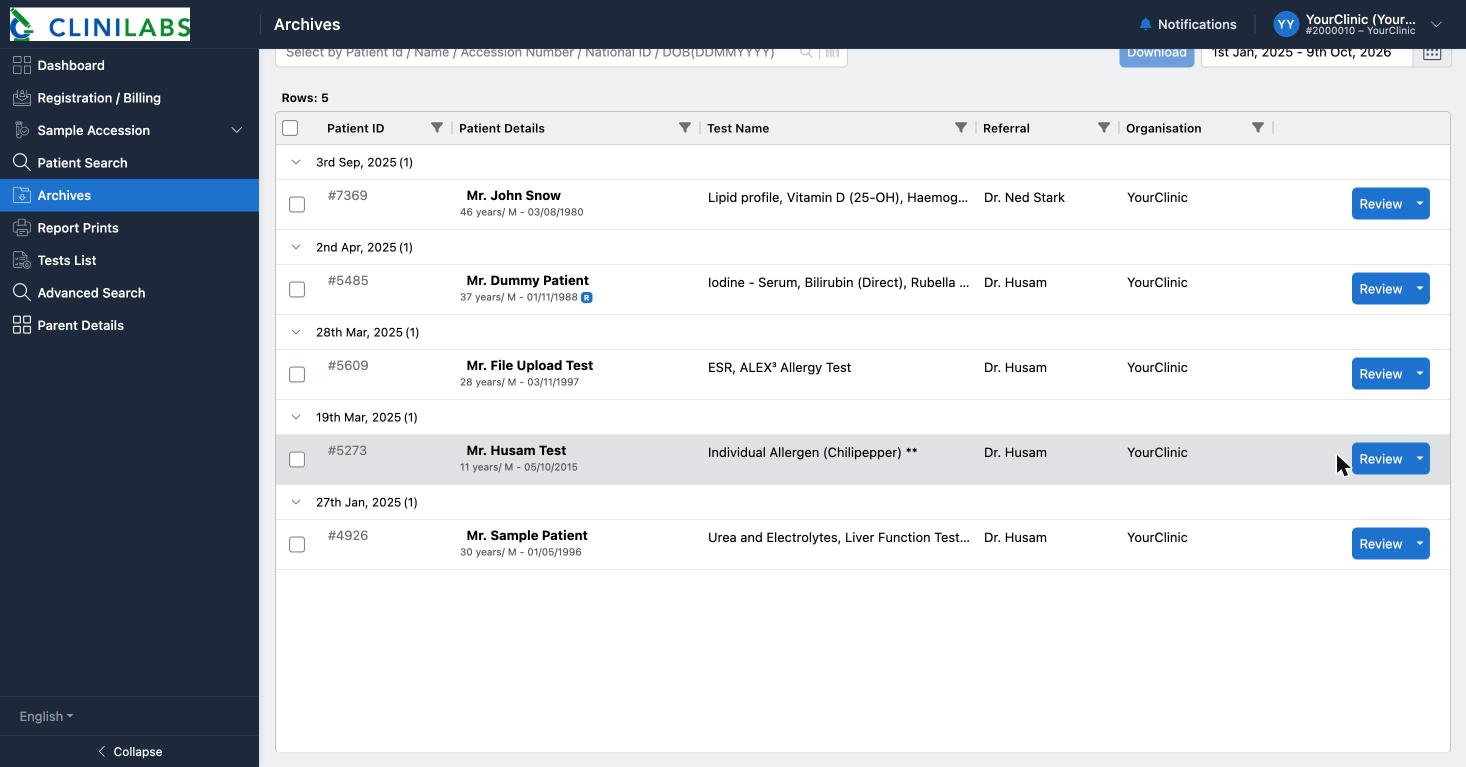
All completed reports are in Archives, grouped by report date. Choose the dates at the top right, search by patient, and select Review to open one, or tick several and select Download.