
Registering a patient and ordering tests
Add a patient, enter their details correctly and place an order for their tests.
Before you start
Have the patient's details to hand. Getting these right means the right results reach the right person, and lets your patient see their results in the Clinilabs results app.
| Detail | Why it matters |
|---|---|
| Full name (as on their ID) | Appears on the report and labels |
| Date of birth | Used with the name to identify the patient, and to choose the right reference ranges |
| Sex | Some reference ranges depend on it |
| Mobile number | Your patient signs in to the results app with this number, so check it with them |
| Optional; a backup way for your patient to sign in |
Register the patient and order
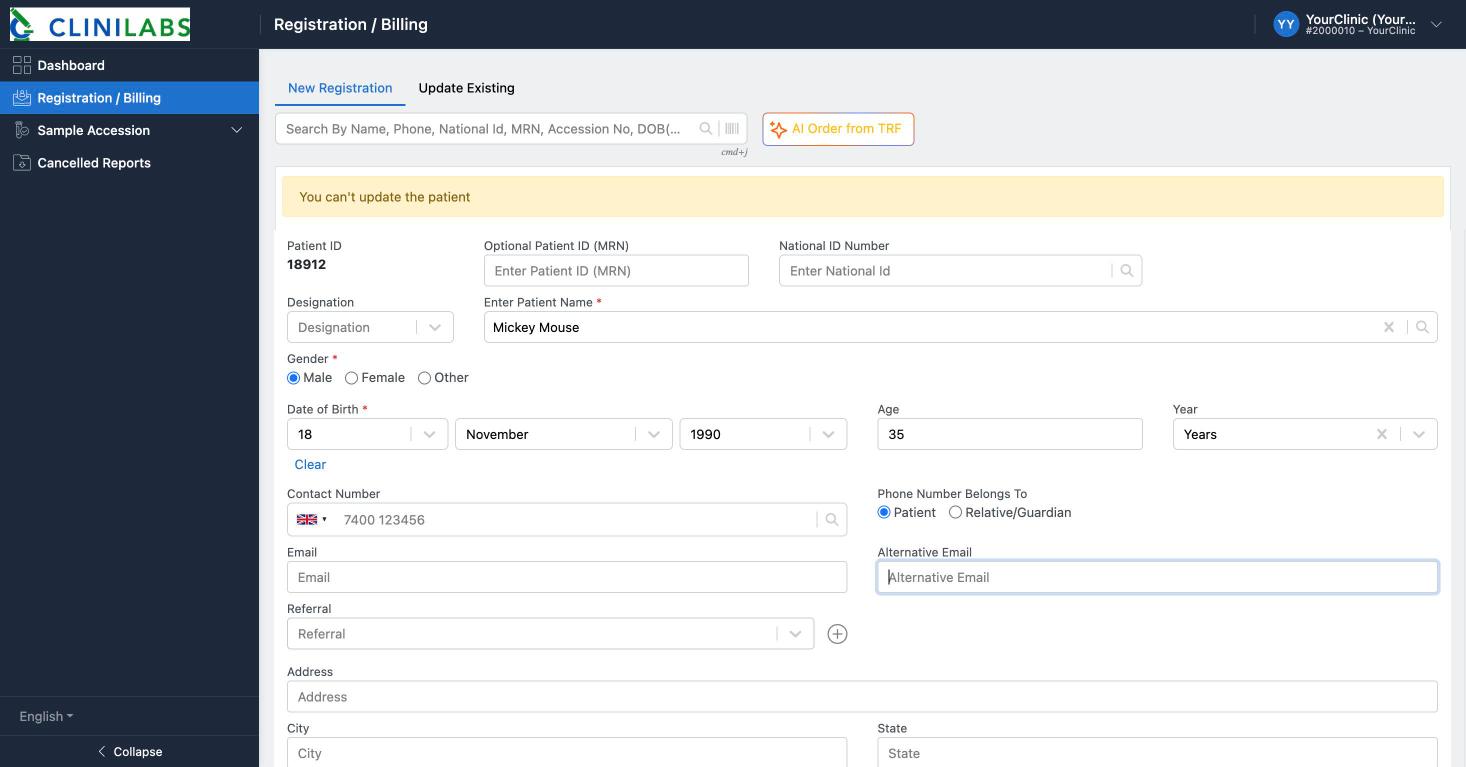
- In the menu, select Registration / Billing. You'll be on the New Registration tab.
- Search first, using the box at the top: name, phone, national ID, accession number or date of birth (
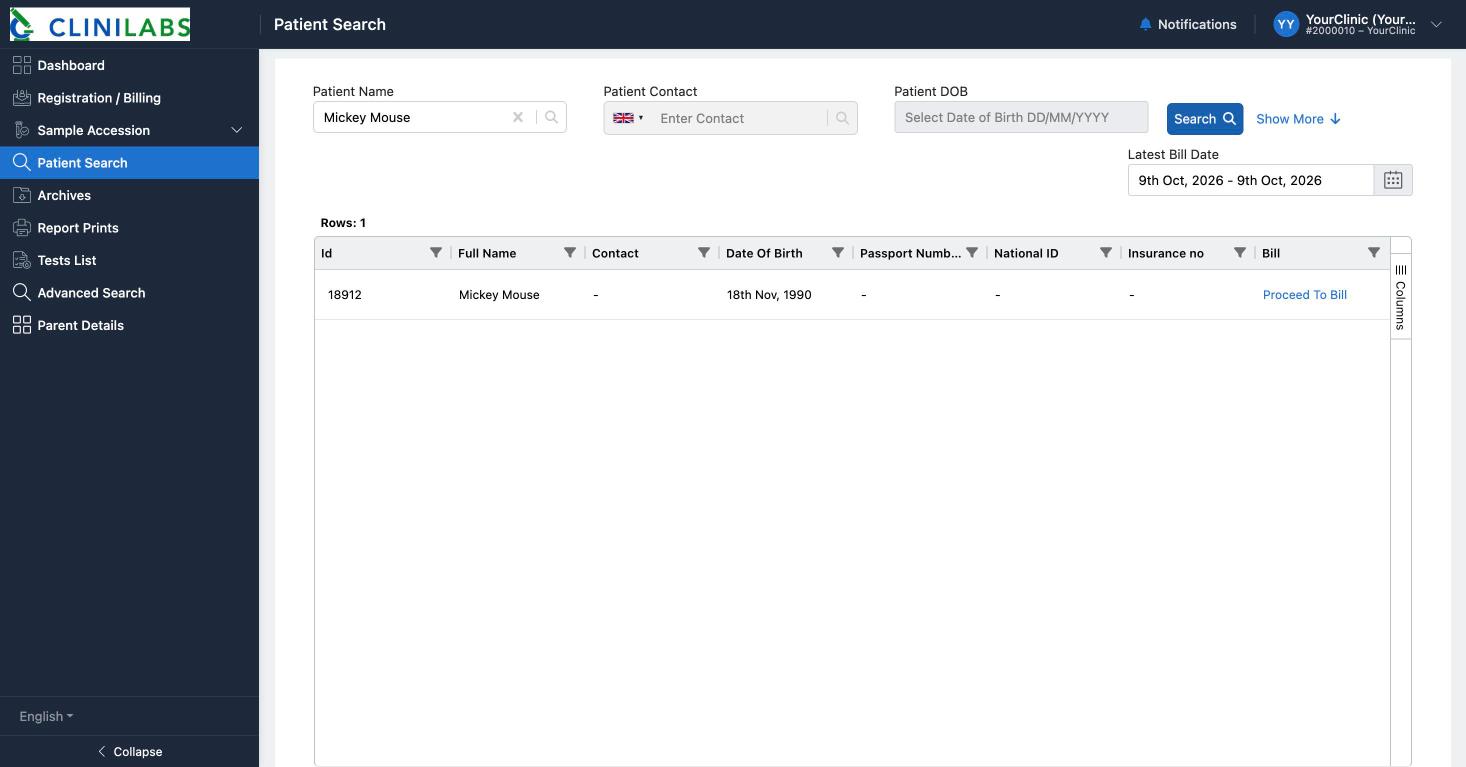
DDMMYYYY). If the patient has been registered before, select them; don't create them twice. You can also use Patient Search in the menu and select Proceed To Bill next to the patient. - If they're new, enter their details. Patient name, gender and date of birth are required. Under Contact number, choose whether the number belongs to the patient or a relative/guardian.
- Choose the Referral: the clinician requesting the tests. This is required. If the clinician isn't in the list, contact us to add them.
- Add any clinical history that will help us interpret the results.
- Select Register And Bill to go on and choose their tests. See Choosing tests and profiles. (Register on its own saves the patient without placing an order.)
Have a paper request form?
AI Order from TRF, next to the search box, can fill in the order from a photo or scan of a completed request form. Always check what it fills in before saving.
Patients who've been here before
Made a mistake?
To keep patient records accurate, clinics can't change a patient's details once they're saved (you'll see "You can't update the patient"). Contact us straight away on 020 4525 8805 or [email protected] with the bill ID, before the sample reaches us if possible, and we'll correct it.