
Adding Clinilabs as your lab in Semble
Link your Semble clinic to Clinilabs so you can order tests and get results back in Semble.
If your clinic uses Semble, you can link it to Clinilabs. You can then order Clinilabs tests from a patient's record in Semble, and results come back into Semble automatically.
Before you start
- You'll need your Clinilabs ID source code. We email this to you when your account is set up. If you can't find it, email [email protected].
- In Semble, you need a role that lets you edit Lab settings. If you can't see the option below, ask your Semble account owner.
Linking your account
- In Semble, open Settings and select the Lab and pharmacy tab.
- Select Add lab account.
- Fill in: - Select the lab you want to connect with: choose Clinilabs. - Enter the account name: a name for this account in Semble, for example "Clinilabs". - Enter the ID source code to connect your account: the code we emailed you.
- Select Save.
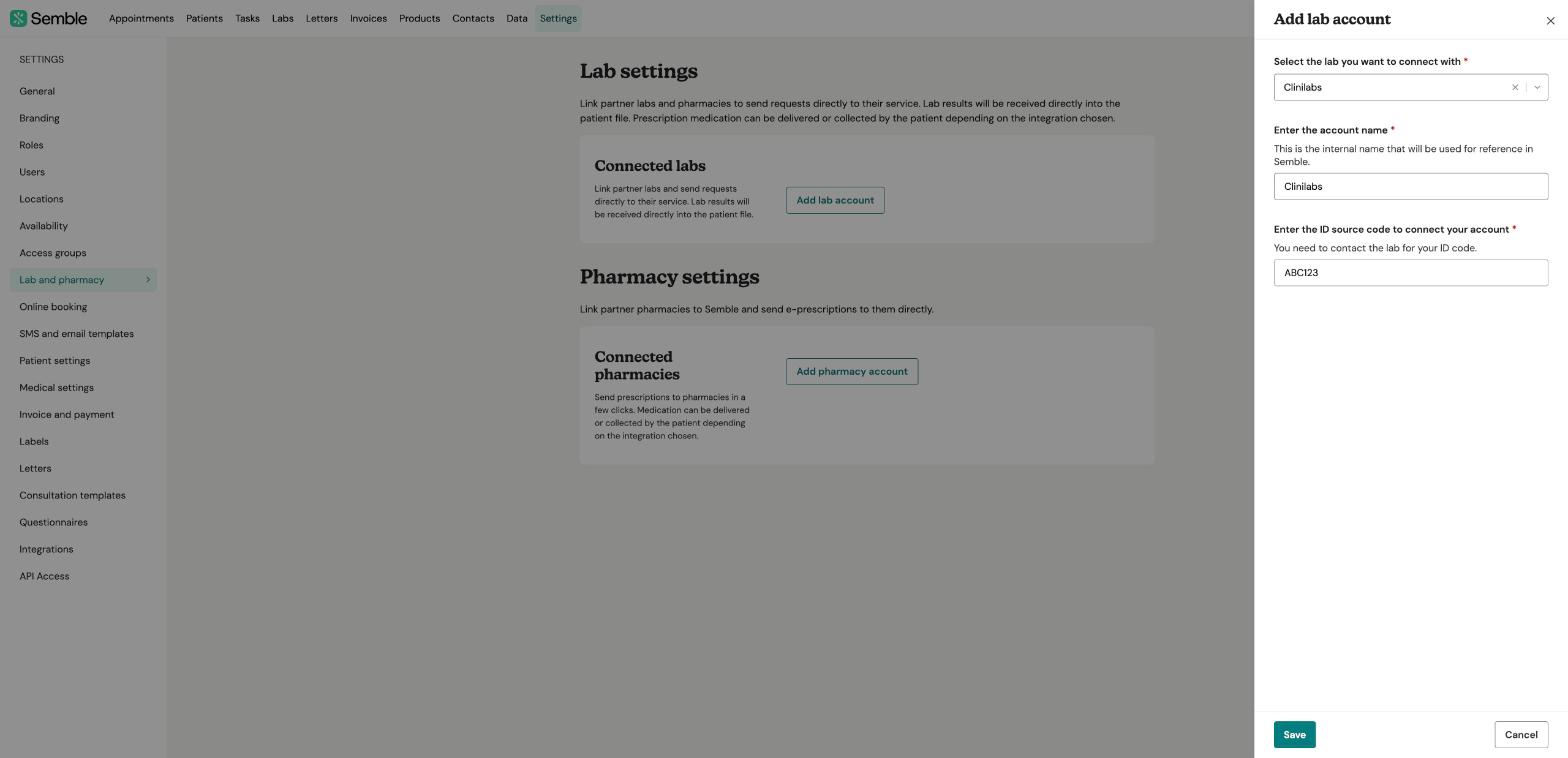
Your Semble clinic is now linked to Clinilabs.
Ordering tests
Once linked, our standard test list is loaded into Semble for you, and the tests appear on your Products page. You can then request them as labs from a patient's record. If a test or profile you use isn't in the list, add it yourself as a product. See Adding Clinilabs tests as products in Semble.
You still need to label, package and send the samples to us as usual. See Packaging samples and Booking a courier collection.
Having trouble?
If Clinilabs isn't in the list of labs, or Semble won't save your code, email [email protected] or call or WhatsApp 020 4525 8805.