
Finding your way around the portal
A quick tour of the portal's menu and what each part is for.
After signing in you'll see your clinic's Dashboard, with the menu on the left.
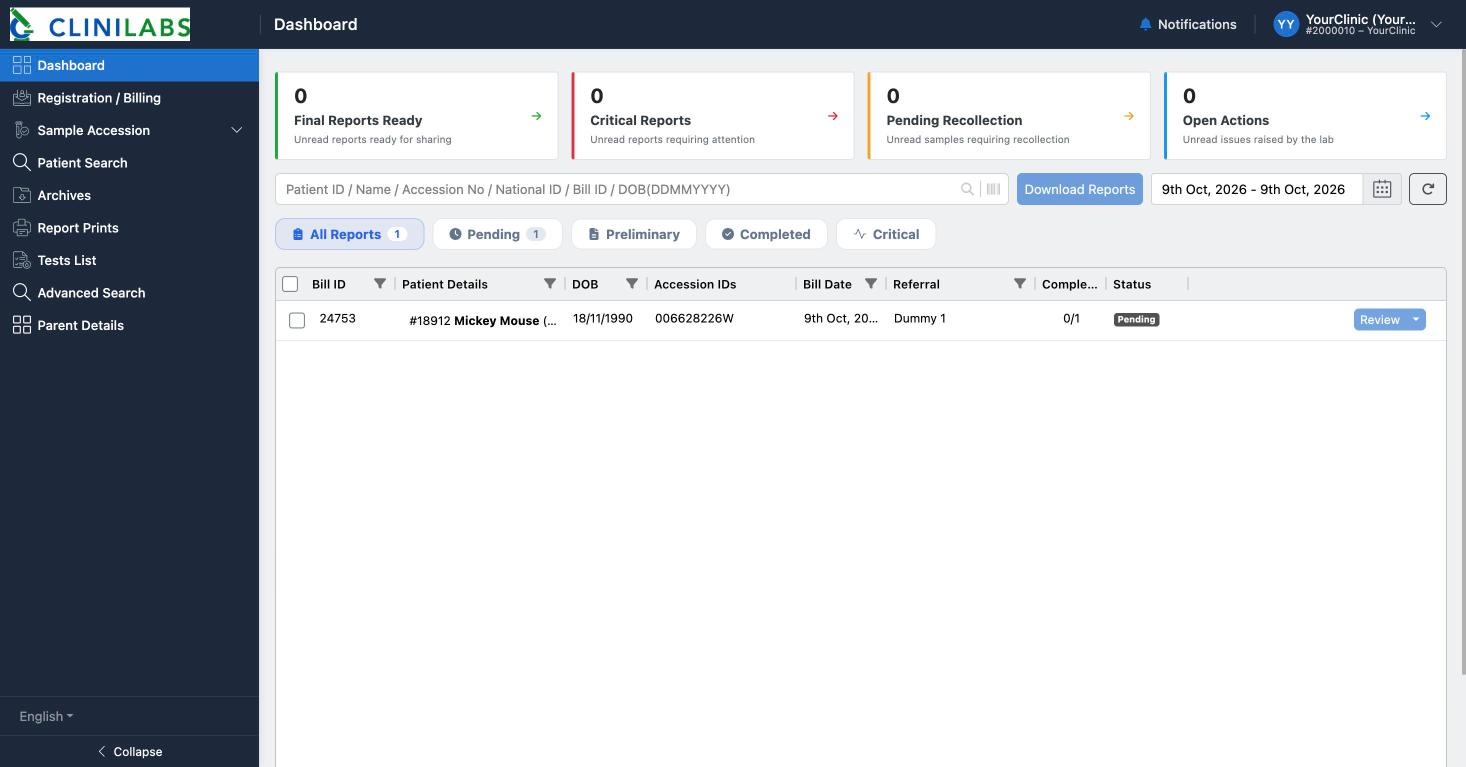
The menu
| Menu | What it's for |
|---|---|
| Dashboard | Your orders and reports, with their progress. See Tracking your samples and orders |
| Registration / Billing | Registering a patient and ordering their tests. See Registering a patient and ordering tests |
| Sample Accession | Collecting samples and printing barcode labels: Pending Collection, Pending Accession, Accessed and Rejected Samples. See Printing barcodes and request forms |
| Patient Search | Finding a patient by name, phone or date of birth, and ordering more tests for them |
| Archives | All your completed reports, by date. See Viewing and downloading reports |
| Report Prints | Printing or downloading several reports at once |
| Tests List | Every test we offer, with the sample and tube needed and the usual turnaround time. See Choosing tests and profiles |
| Advanced Search | Finding an order by mobile, email, accession number, referral, age or patient ID |
| Parent Details | Our contact details |
Select Collapse at the bottom of the menu to make it narrower.
Notifications and your account
Notifications (the bell at the top right) lists alerts such as reports that are ready and critical results. Select View all notifications to see older ones. See Urgent and critical results.
Your clinic's name is at the top right. Select it to find Updates (news about the portal) and Logout.
Finding an order or patient
Use the search box on the Dashboard: patient ID, name, accession number, national ID, bill ID or date of birth (typed as DDMMYYYY, for example 03081980). The Dashboard shows recent orders; to see older ones, select the dates at the top right and choose a wider range, or use Patient Search or Archives.
If something you need is missing from your portal, contact us and we'll check your clinic's settings.